Adding Columns to Reference Fields
Overview
By default, a reference field only displays one column of data: the field on the referenced table with Display set to true in the Dictionary Entry. Only one field per table can carry this flag, and it’s typically the number or name field.
In many cases a single column isn’t enough to disambiguate similar records (e.g., telling two users with the same name apart). ServiceNow lets you add extra columns to a reference field’s auto-complete dropdown by setting the ref_ac_columns attribute, without changing the underlying Display field.
Adding a Column to a Reference Field (Form Field)
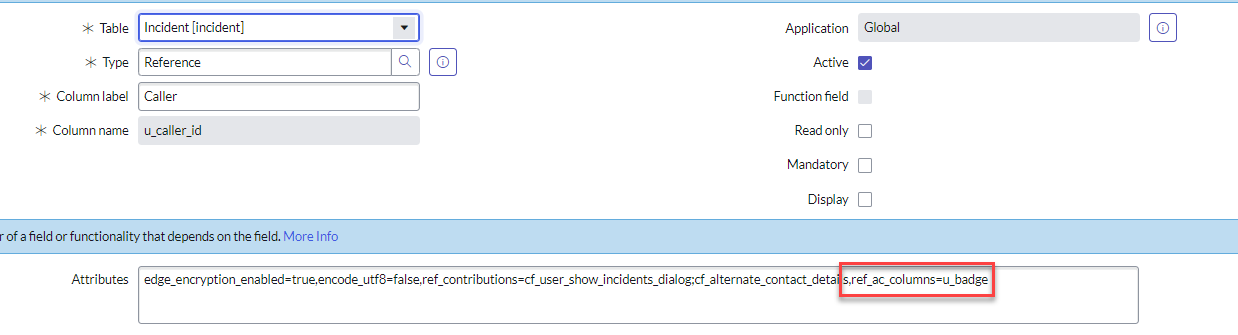
Navigate to System Definition > Dictionary and open the reference field you want to modify (e.g., Caller on the Incident table,
u_caller_id).In the Attributes field, add the following, appending it to any existing attributes with a comma:
ref_ac_columns=[field_name1],[field_name2]Click Update to save the dictionary entry.
For example, adding a second column showing the u_badge field from sys_user to the Caller field on Incident:
Result:
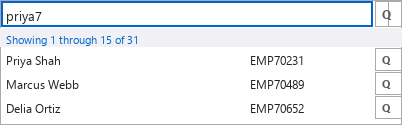
ref_ac_columns — it’s still what determines the value shown once a record is selected. ref_ac_columns only adds extra columns to the typeahead/search dropdown.Adding a Column to a Reference Variable (Service Portal / Catalog)
Reference and List Collector variables used on Service Portal catalog items require a different set of attributes, since they render through the AJAX table completer rather than the classic UI16 reference widget:
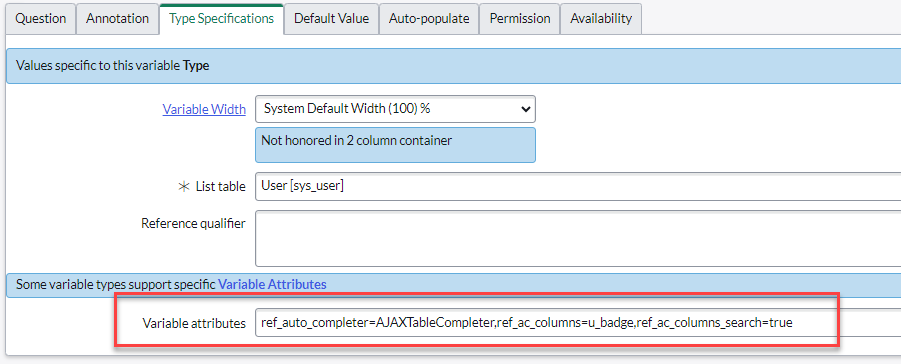
ref_auto_completer=AJAXTableCompleter,ref_ac_columns=[field_name],ref_ac_columns_search=true- Open the catalog item variable and go to the Type Specifications tab.
- In Variable attributes, add the string above, substituting your field name.
- Click Update.
Example, adding u_badge to a User [sys_user] reference variable:
Before:

After:
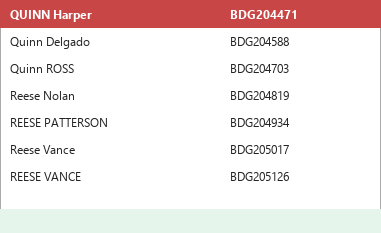
ref_ac_columns_search=true also makes the added column searchable, so users can find a record by typing the badge number instead of the name.