Reference Field Contains Search Queries
Overview
By default, reference fields search using “Starts with” matching, so the only way to do a contains-style search from the field itself is to prefix the search term with *. However, you can create a User Preference record that makes a specific reference field’s autocomplete use a contains search by default.
Prerequisites
You must know the table name, not the label. If you don’t already know it:
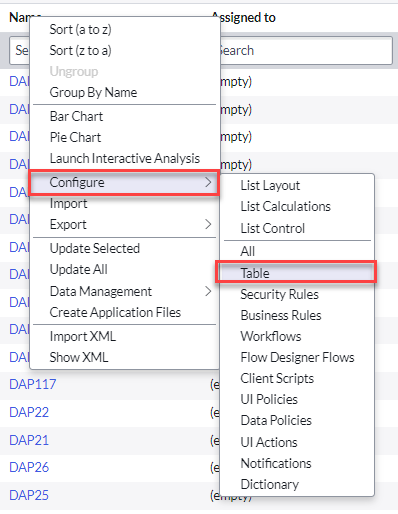
- Navigate to the table you want to create this User Preference for.
- Right-click any column header.
- Click Configure > Table.
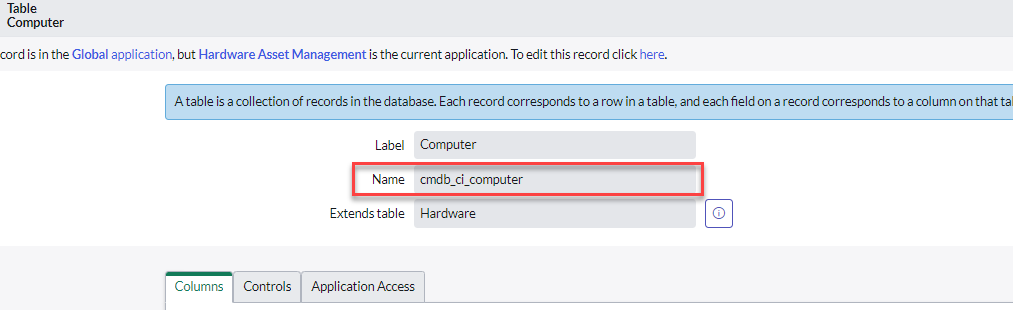
- The table form loads, and the Name field shows the actual table name (e.g.
cmdb_ci_computerfor the Computer table).
Creating the User Preference
- Navigate to All > User Administration > User Preferences.
- Click New (or open an existing preference record for the table).
- Fill in the record as follows:
- Name:
[table name].autocomplete.contains - Value:
true - Type:
true | false - System: checked
- Name:
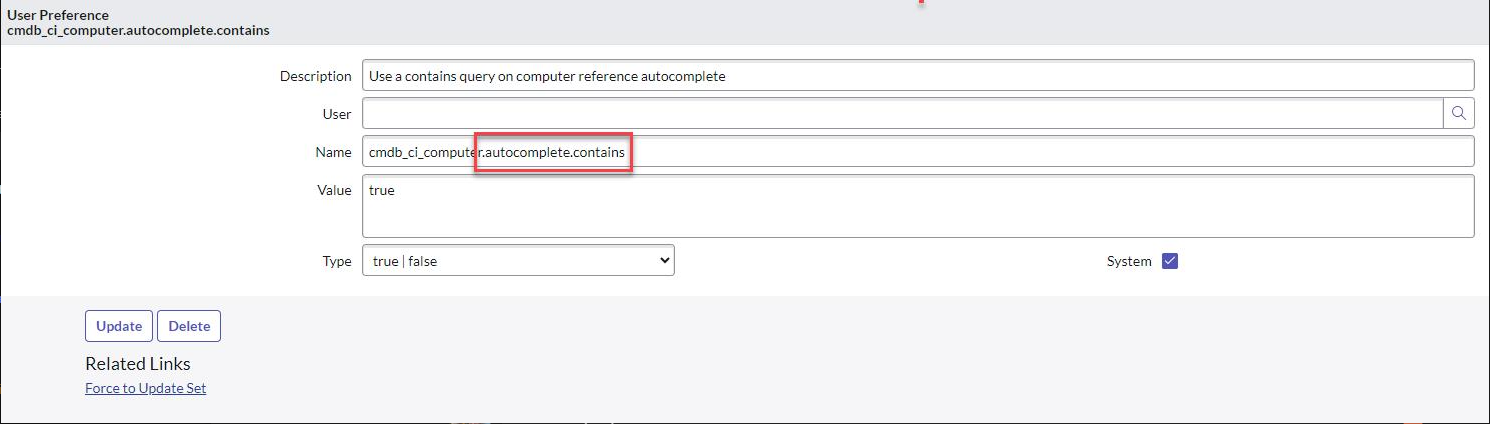
Setting System ensures the preference applies instance-wide rather than only to the user who created it. Leave the User field empty for a system-wide setting.
Last updated on