Siri Shortcuts + Notion Personal Finance Tracker Integration
Introduction
This project connects Apple’s Siri Shortcuts with the Notion Personal Finance Tracker Template to automate expense and income tracking using Siri voice assistance or tap interactions. It bridges mobile input with database automation by using Notion’s API to log financial entries directly into Notion databases: Income, Expenses, and Total Savings.
Note: These shortcuts can easily be used to integrate with any Notion database no mater the niche.
Overview of Notion Template
The template includes:
- 3 Databases:
- Income – Properties: Source, Amount, Category, Date, Month (relation)
- Expenses – Properties: Source, Amount, Category, Date, Month (relation)
- Total Savings – automatically calculated based on related income and expense entries
- Dashboards & Views:
- Quarterly filters (Q1, Q2, etc.) and visual charts (pie/bar) showing financial breakdowns
Required Setup Before Use
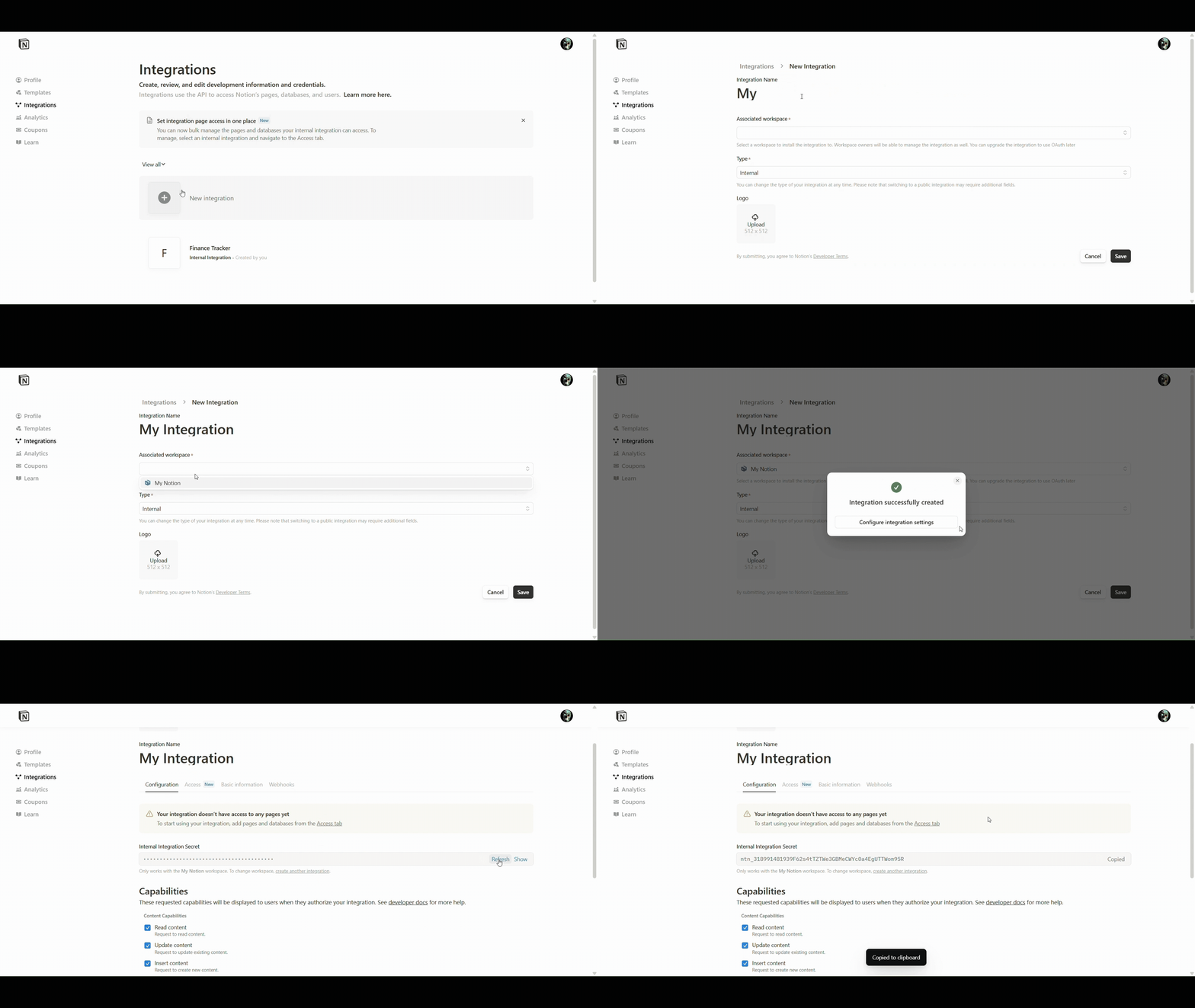
1. Get Your Notion Integration API Key
- Go to https://www.notion.com/my-integrations
- Click “+ New integration”
- Enter an integration name
- Select Assoicated workspace
- Click Save
- Copy your Internal Integration Secret
2. Share Databases With Integration
- Go to https://www.notion.com/my-integrations
- Click your integration
- Click “Access”
- Click “+ Select pages"
- Select the Top Level Page to give access
- Click Update access
3. Retrieve Database IDs
Open each database as a full-page view in Notion
The URL will contain your database ID, e.g.
https://www.notion.so/1d876d565fanfjdfbc2bf515aeiw1f6a?v=1d876d565fa1811baa79000c15cc8310Everything after the
/and before the?is the database ID e.g.1d876d565fanfjdfbc2bf515aeiw1f6aSave these IDs for use in your shortcut POST calls
Shortcut 1: Log Income
Purpose
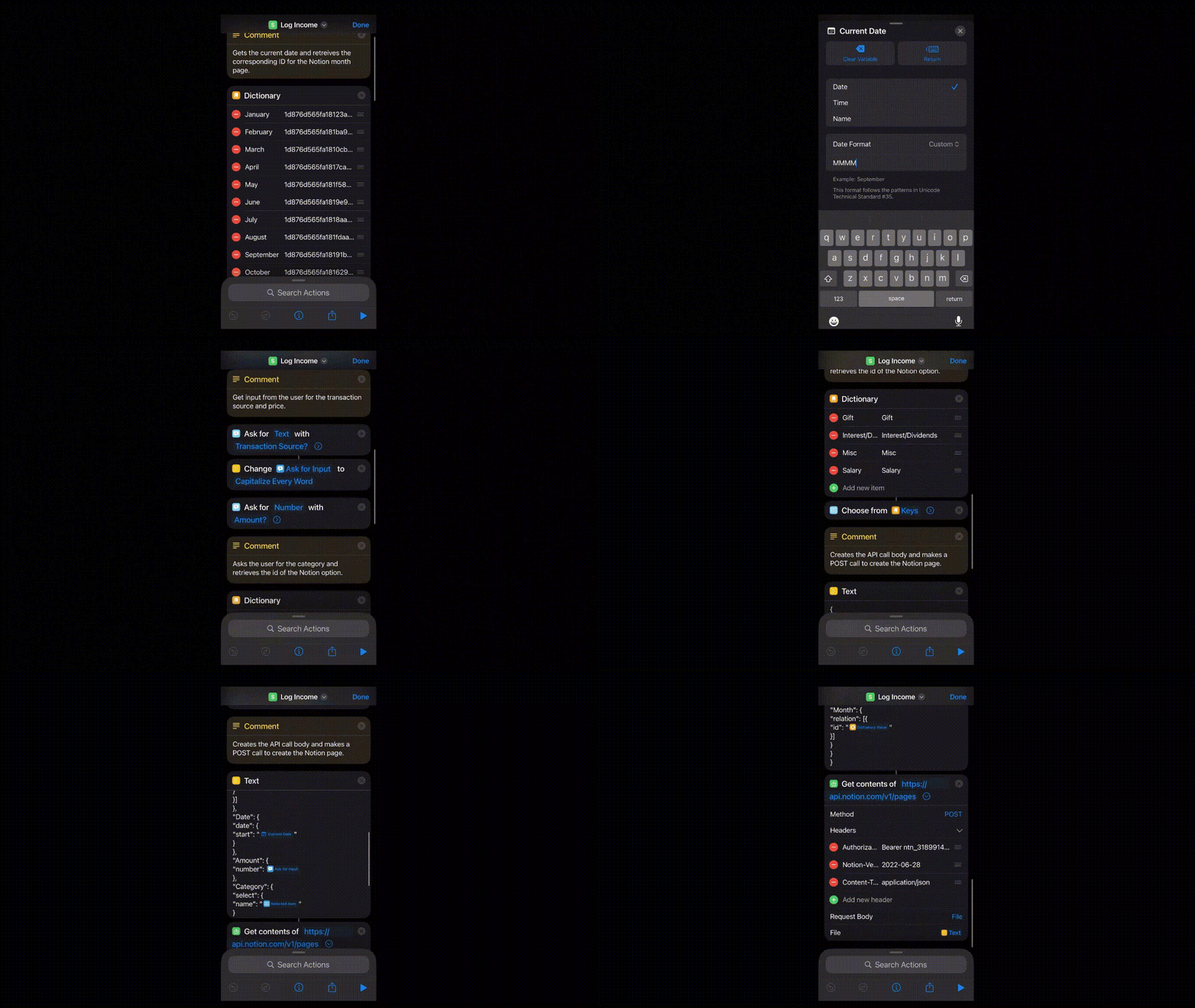
Logs a new entry into the Income database in Notion via a Siri Shortcut.
Key Steps
Get Current Month’s Notion Page ID
- Dictionary maps month names to Notion page IDs (used for relation to “Month” property)
Prompt for Input
- Ask for Source (e.g., “Paycheck”, “Gift”)
- Ask for Amount (as number)
- Ask for Category – via dictionary
Construct JSON Body
{
  "parent": {
    "database_id": "INCOME_DATABASE_ID"
  },
  "properties": {
    "Source": {
      "title": [{
        "text": {
          "content": "SOURCE_INPUT"
        }
      }]
    },
    "Date": {
      "date": {
        "start": "CURRENT_DATE"
      }
    },
    "Amount": {
      "number": AMOUNT_INPUT
    },
    "Category": {
      "select": {
        "name": "CATEGORY_INPUT"
      }
    },
    "Month": {
      "relation": [{
        "id": "MONTH_PAGE_ID"
      }]
    }
  }
}- POST to Notion
https://api.notion.com/v1/pages- Headers:
Authorization: Bearer YOUR_API_KEYNotion-Version: 2022-06-28Content-Type: application/json
- Body:
- Constructed JSON body
Log Income Shortcut
Shortcut 2: Log Expense
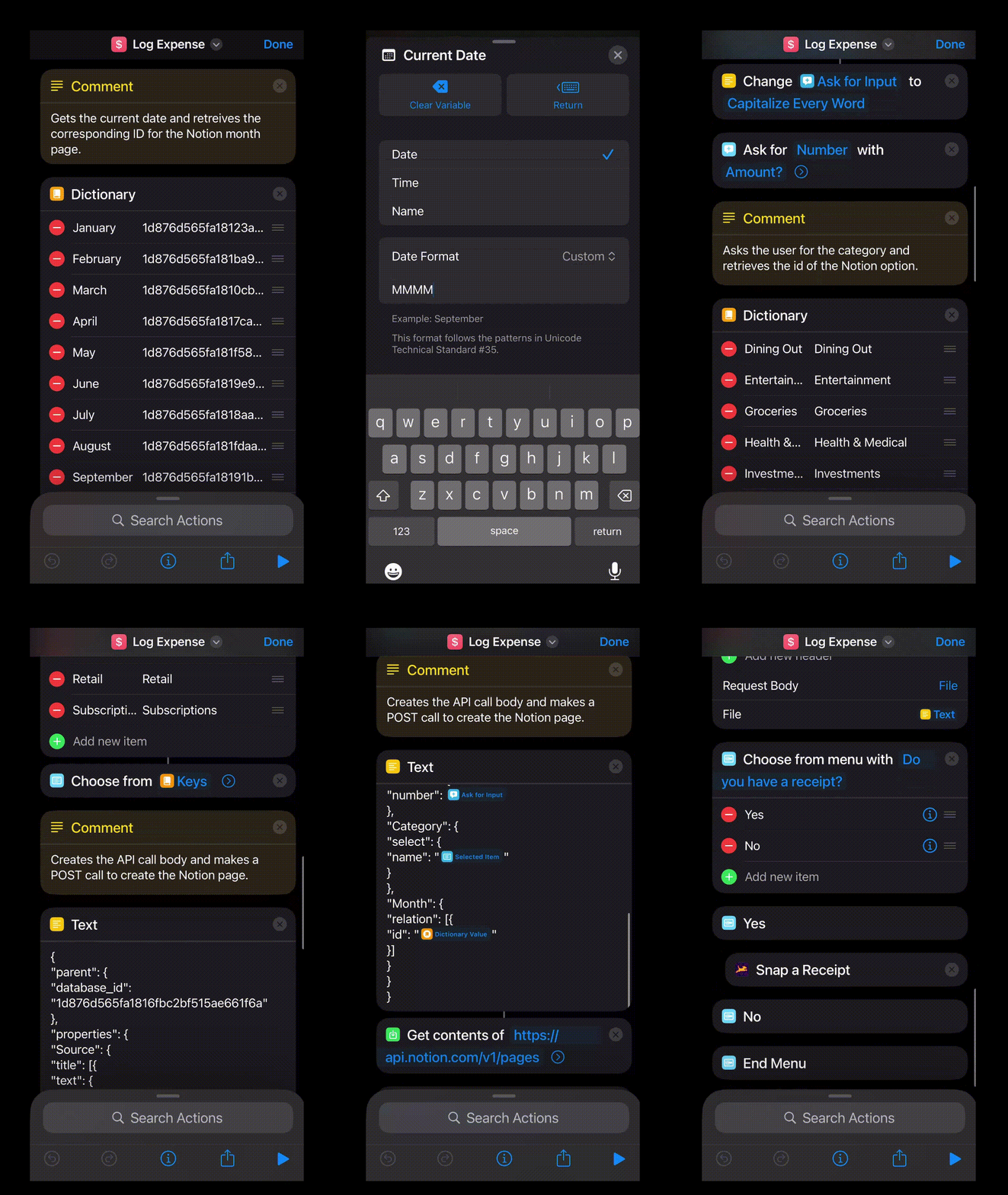
Exact same structure and actions as the Log Income shortcut but now targeting the Expenses database. However with the Log Expense shortcut addtional logic was added at the end, the shortcut asks:
“Do you have a receipt?”
If Yes, it launches Fetch to snap a receipt. If No, it completes without additional action.
Log Expense Shortcut
Summary
This Siri Shortcut system allows for:
- Quick financial logging
- Customizable templates for both income and expenses
- Full integration with a Notion financial dashboard, keeping your budget centralized and visual
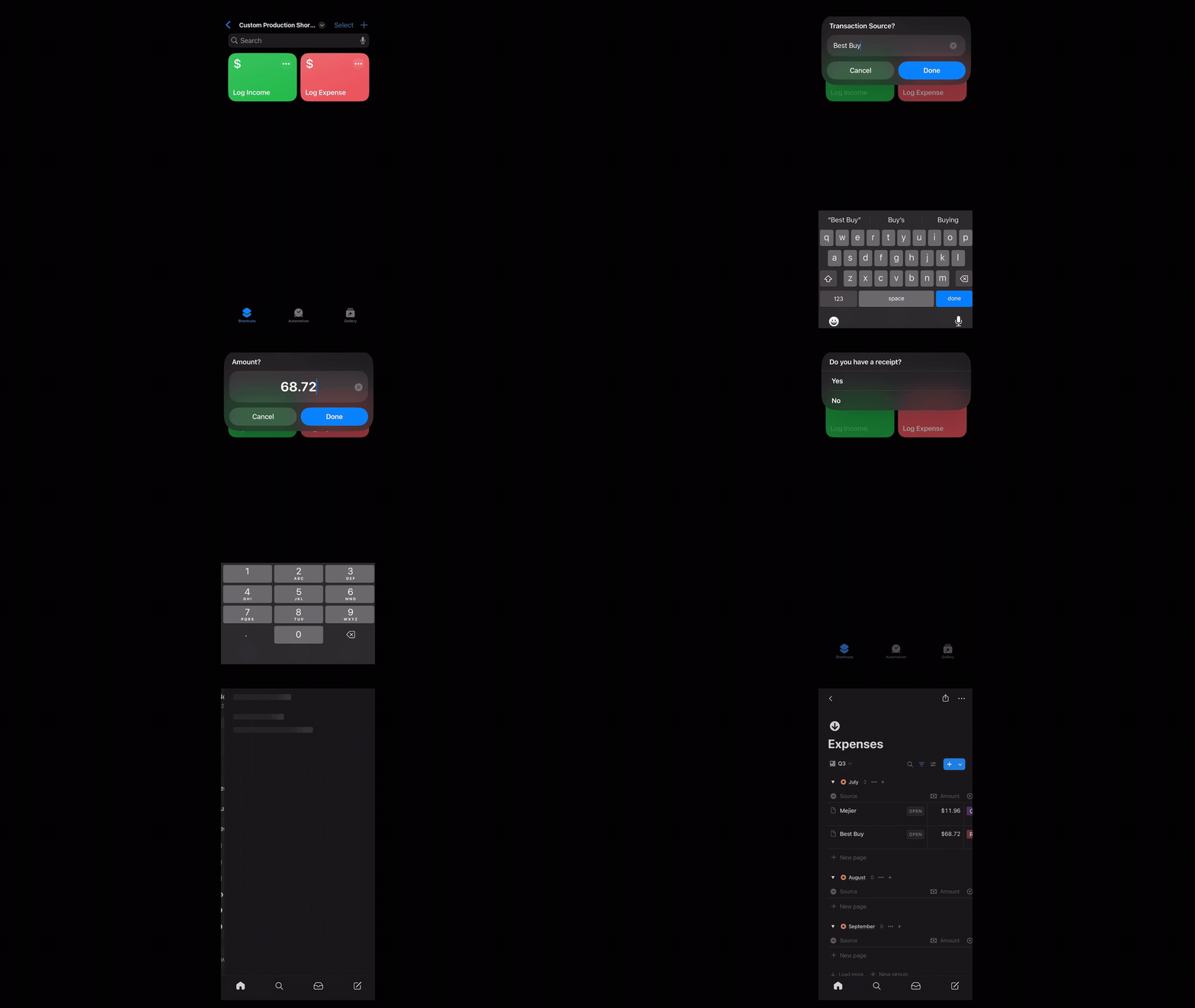
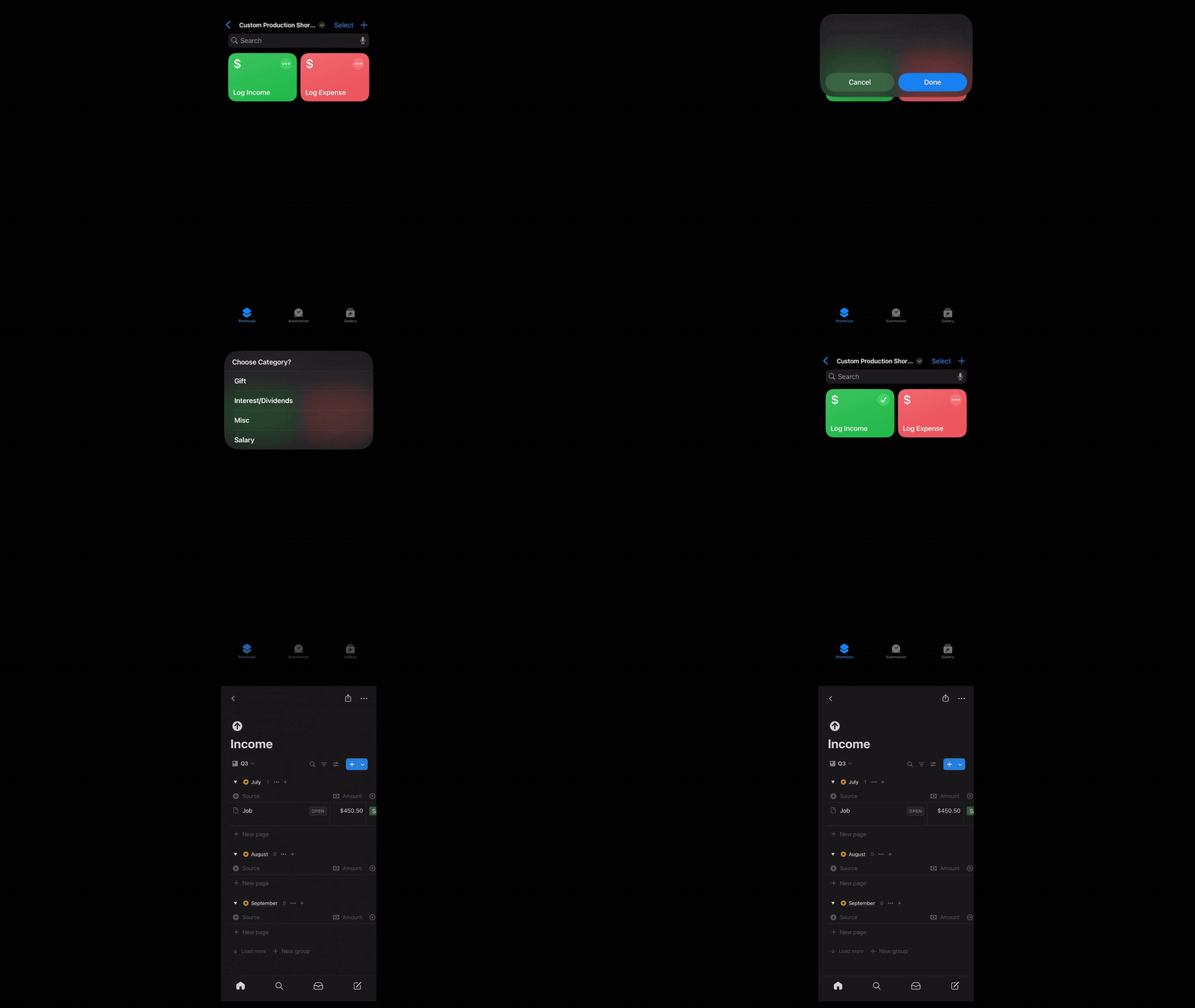
This approach provides a low-code, highly effective personal finance automation setup suitable for iOS users who want flexibility, control, and a modern workflow. Below is a demo of both Siri Shortcuts.
Log Income Example
Log Expense Example